Capybaras VS Plants Controls & UI Guide
Every input on PC, mobile, and tablet — movement, Shop, codes, eggs, fighters, and plot navigation.
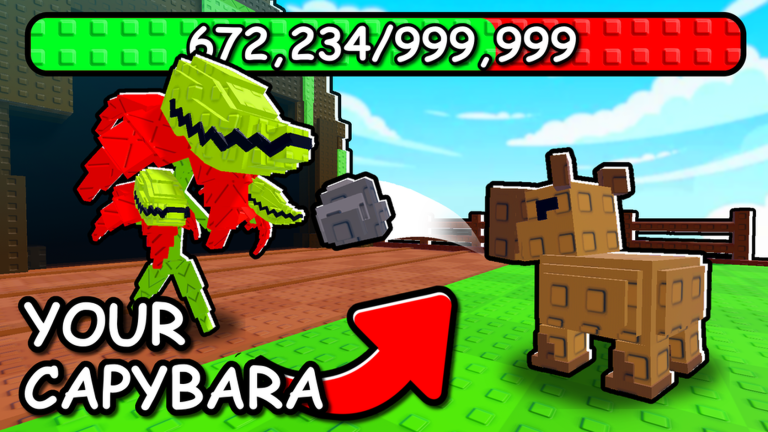
Capybaras VS Plants runs on Roblox across PC, mobile phones, and tablets with the same idle tycoon loop — but controls differ enough that new players waste their first session opening the wrong menu or missing the codes box. Scarlett the Dog Group kept the UI lightweight: walk your plot, open Shop, place eggs, assign capybaras, redeem codes. No aim-heavy combat, no chat commands for promos. This guide maps every control surface so you spend time earning Cash instead of hunting buttons.
If you have never played a Roblox tycoon before, read How to Play after this page for progression strategy. Controls get you comfortable; the how-to-play guide explains why each button matters economically.
PC controls (keyboard and mouse)
Roblox PC defaults apply unless you rebinding in Roblox settings:
| Action | Default input |
|---|---|
| Move character | W A S D or click-to-move on ground |
| Jump | Space (rarely needed on flat plots) |
| Camera rotate | Hold right mouse button and drag |
| Camera zoom | Mouse scroll wheel |
| Interact / select | Left click on objects and UI buttons |
| Open Roblox menu | Esc |
In-game UI on PC typically sits on a side or bottom bar:
- Shop — opens purchase panel for eggs, tools, and the codes box
- Inventory — eggs and items waiting for placement
- Plot tools — placement mode for eggs and structure interactions
Click an empty plot slot while holding an egg in inventory to place it. Click a hatched capybara, then click a battle lane marker to assign it to plant fights.
Mobile and tablet controls (touch)
Touch devices use Roblox mobile defaults:
| Action | Default input |
|---|---|
| Move character | Virtual joystick (left side) |
| Camera | Swipe on empty screen area |
| Jump | Jump button (if shown) |
| Interact / select | Tap on objects and UI buttons |
The Shop, inventory, and placement flows mirror PC — same buttons, larger touch targets. Tablet players get more screen space for plot overview; phone players may need to zoom camera out before placing eggs on rear slots.
Tip: Rotate device to landscape if UI feels cramped. Roblox supports both orientations on most phones.
Shop menu and codes UI
Every promo code redeems through Shop, not chat. Scarlett the Dog Group placed the codes box at the bottom of the Shop panel — scroll past egg listings until you see a text field labeled Codes.
Redemption steps:
- Tap or click Shop
- Scroll to the bottom
- Tap the Codes input field
- Type or paste the code exactly — capitalization matters for strings like 10KFAVS
- Press Redeem
- Watch for reward popup and check Cash total
Full walkthrough with screenshots context: How to Redeem Codes. Active codes list: Codes Hub.
If Redeem does nothing, rejoin a fresh server before assuming the code expired — see Code Troubleshooting.
Egg placement controls
Eggs move from inventory to plot through placement mode:
- Open inventory after purchasing or redeeming an egg
- Select the egg icon
- Walk to an empty plot slot — highlighted or outlined when valid
- Click or tap to confirm placement
- Wait for timer bar above egg, or use Hatch Hammer from inventory
Rules that affect controls:
- One egg per slot — you cannot stack
- Invalid slots grey out or ignore taps
- Moving eggs mid-timer may reset progress — place carefully on first attempt
Hammer usage: select Hatch Hammer in inventory, then tap the incubating egg. Gilded Hammers work the same with larger timer reductions.
Deep hatch strategy: Hatch Eggs.
Assigning capybaras to battle lanes
Combat is automatic once capybaras reach plant waves. Your job is assignment:
- Tap or click a hatched capybara on your plot
- Tap or click a battle lane indicator — usually toward the plant spawn side
- Confirm the capybara pathfinds toward plants
Multiple capybaras stack income. Empty lanes earn zero Cash online or offline.
To swap units: remove or replace lower-tier capybaras when better hatches arrive. Exact swap UI labels may say Assign, Equip, or drag-and-drop depending on patch — look for lane highlights when selecting a unit.
Tier guidance for who to assign: Capybara Tier List.
Plot navigation tips
Your plot is a personal instance within the shared lobby. Navigation goals:
- Walk the full perimeter once on first join to memorize slot locations
- Zoom out before bulk egg placement on large plots
- Locate the tree, fuse machine, and boss summon after Update 2 — usually plot edge structures
- Return to Shop via UI bar, not by respawning — respawn may waste active weather windows
Other players may visit your plot on some servers. Movement controls do not change; social presence does not block placement.
Fuse machine and boss UI (Update 2)
Update 2 added interactable structures beyond the basic plot:
Fuse Machine — walk up and press the interact prompt (click or tap). Opens fusion UI for selecting duplicate capybaras. Guide: Fuse Machine.
New Boss — summon or enter prompt near boss structure. Requires minimum army strength. Guide: Beat the Boss.
If interact prompts fail, rejoin the server — Update 2 hotfixes occasionally desync structure states.
Totem placement
Totems from codes like 10KFAVS and UPDATE2 place like eggs:
- Open inventory
- Select totem item
- Tap valid plot tile — often central for aura coverage
- Confirm placement; aura applies to nearby eggs and battle lanes
Relocate totems when you reorganize lanes for Offline Earnings — Wealth totem belongs near highest-income capybaras.
Accessibility and input issues
Small phone screens — use landscape, zoom camera out, place eggs on nearest slots first.
Mis-taps on crowded plots — zoom in before selecting hatch hammers; accidental hammer waste is common on mobile.
Controller support — Roblox supports gamepads on some platforms; mapping follows Roblox defaults with A/X confirm. Most tycoon players use touch or keyboard for Shop scrolling.
Keyboard on tablet — Bluetooth keyboards work with Roblox PC-style WASD if the tablet runs Roblox in desktop-compatible mode.
Controls versus game mechanics
Controls do not change idle math:
- Offline income still requires battle assignment before logout
- Codes still redeem only through Shop
- Weather still mutates units on plot regardless of input device
Platform choice affects comfort, not progression — mobile players with disciplined logout routines match PC income.
Quick reference checklist
| I want to… | Control path |
|---|---|
| Redeem a code | Shop → scroll down → Codes box → Redeem |
| Buy an egg | Shop → select egg → purchase with Cash or Robux |
| Place an egg | Inventory → select egg → tap empty slot |
| Speed up hatch | Inventory → Hatch Hammer → tap egg |
| Start plant income | Select capybara → assign to battle lane |
| Open fusion | Walk to Fuse Machine → interact prompt |
Related pages
- How to Play — progression after you know the buttons
- Codes Hub — what to type in the codes box
- Hatch Eggs — placement and hammer timing
- Guides Hub — all walkthroughs including Best Cash Method
Frequently Asked Questions
Quick answers for Capybaras VS Plants players.
Where do I enter codes on mobile?
Open Shop, scroll to the bottom of the panel, tap the Codes text box, paste the code, and press Redeem. The path is identical on PC and mobile.
How do I place an egg on my plot?
Open inventory, select the egg, then tap or click an empty plot slot. A timer bar appears above the egg until it hatches.
How do I make capybaras fight plants?
Select a hatched capybara and assign it to a battle lane toward the plant spawn side. Capybaras auto-attack once assigned.
Do controls differ between PC and mobile?
Movement uses WASD or click on PC and a virtual joystick on mobile. Shop, codes, inventory, and placement flows are the same across platforms.
Can I redeem codes through chat?
No. All promo codes redeem through the Shop menu codes box at the bottom of the panel.